
Tech
KB5001716: What This Windows Update Really Means for Your PC (2026 Guide)


If you’ve noticed KB5001716 quietly appearing on your Windows 10 or Windows 11 computer, you’re not alone. Thousands of users worldwide have seen this update install automatically without much explanation.
Table of Contents
- What Is KB5001716?
- Why Did Microsoft Install KB5001716?
- Is KB5001716 Safe to Install?
- Common Installation Errors and Fixes
- Should You Uninstall KB5001716?
- Windows 10 End of Support Options
- How to Block KB5001716
- Frequently Asked Questions
But what exactly is KB5001716? Is it safe? Should you keep it or remove it?
In this comprehensive guide, I’ll walk you through everything you need to know about this mysterious Windows update, including what it does, why Microsoft installed it on your system, and how to manage it properly.
What Is KB5001716?
KB5001716 is an official Microsoft update designed to enhance the Windows Update service components on your computer. Think of it as an upgrade to the system that manages all your other Windows updates.
The update introduces new user interface functionality for Windows Update and enables notifications about end-of-support status.
Unlike regular security patches or feature updates, KB5001716 serves a very specific purpose. It prepares your system to receive important notifications and potential feature updates, especially if your Windows version is approaching the end of its support lifecycle.
Which Windows Versions Receive KB5001716?
Microsoft has deployed this update to multiple Windows versions, including:
- Windows 10: Version 22H2 and 21H2
- Windows 11: Version 21H2
Notably, Microsoft is no longer pushing KB5001716 to unsupported Windows 10 versions like 2004, 20H2, and 21H1.
Why Did Microsoft Install KB5001716 on Your Computer?
Here’s where things get interesting. Microsoft installs KB5001716 silently on compatible systems for a very important reason.
With Windows 10 reaching its end of support in October 2025, Microsoft needs a way to notify users that their operating system will soon stop receiving critical security updates. That’s where KB5001716 comes in.
What KB5001716 Actually Does
Once installed, this update performs two primary functions:
1. Prepares Your System for Feature Updates
When installed, Windows may attempt to download and install feature updates to your device if it is approaching or has reached the end of support. This helps ensure your computer stays secure even as older Windows versions are phased out.
2. Displays End-of-Support Notifications
The update enables Windows to show periodic notifications about problems that could prevent your system from staying up to date. For example, you might see messages informing you that:
- Your Windows version has reached end of support
- Your device doesn’t meet minimum hardware requirements for the current Windows version
- Important security updates are no longer available
Don’t worry about constant interruptions, though. Microsoft states that notifications will respect full-screen, game, quiet time, and focus assist modes, so you won’t be bothered during important tasks or gaming sessions.
Is KB5001716 Safe to Install?
Yes, KB5001716 is completely safe. It’s an official Microsoft update that doesn’t cause system issues or install malware.
The update is designed to help keep your computer secure by ensuring you’re aware of when your Windows version needs to be updated. While some users have experienced installation errors (which I’ll cover below), the update itself poses no security risks.
Does KB5001716 Force Windows 11 Installation?
This is probably the biggest concern users have. The good news is that Microsoft has revised KB5001716 to stop automatic Windows 11 upgrades, now only showing notifications about end-of-life or hardware issues.
The update won’t secretly upgrade your Windows 10 computer to Windows 11 without your permission. It will only notify you about upgrade options and security concerns.
Common KB5001716 Installation Errors and Fixes
While KB5001716 is generally safe, some users have encountered installation problems. Let’s look at the most common issues and their solutions.
Error 0x80070643: Installation Failure
Many users reported encountering error code 0x80070643 during the installation process. This error typically appears when Windows tries to install the same update multiple times.
Why This Happens:
Microsoft released KB5001716 multiple times (October 2023, March 2024, and later releases). If you installed an earlier version, Windows Update might try to install it again, causing conflicts.
How to Fix It:
- Open Settings and go to Apps
- Under Apps & features, scroll down to find “Update for Windows 10 for x64-based Systems (KB5001716)”
- Click on it and select Uninstall
- Restart your computer
- Go to Settings > Windows Update and click Check for updates
- The update should now install successfully
KB5001716 Keeps Installing Repeatedly
Some users report that KB5001716 installs successfully, but Windows Update keeps trying to install it again and again.
The Solution:
Uninstall the 2024-03 version from add/remove programs, then check for updates again, which allows the updater to install both the 2023-10 and 2024-03 versions in the correct order.
Alternatively, you can hide the update using Microsoft’s “Show or hide updates” troubleshooter tool if it continues causing problems.
Should You Uninstall KB5001716?
This depends on your situation and preferences.
When It’s Safe to Uninstall:
- If you’ve upgraded to Windows 11, you can safely uninstall the KB5001716 update listed under App settings, as the Windows 10 update is specific to that operating system
- If the update is causing installation errors that other fixes haven’t resolved
- If you don’t want Windows 11 upgrade notifications (though you’ll miss important security warnings)
When You Should Keep It:
- If you’re still using Windows 10 and want to stay informed about security updates
- If your Windows version is approaching end of support
- If you’re considering upgrading to Windows 11 in the future
How to Uninstall KB5001716
Method 1: Through Windows Settings
- Press Windows + I to open Settings
- Navigate to Windows Update > Update History
- Scroll down and click Uninstall updates
- Find KB5001716 in the list and click Uninstall
- Restart your computer
Method 2: Through Apps & Features
- Go to Settings > Apps > Apps & features
- Type “update” in the search box
- Look for “Update for Windows 10 for x64-based Systems (KB5001716)”
- Click it and select Uninstall
Keep in mind that Windows Update might detect the missing update and attempt to reinstall it, especially if your settings are configured to install updates automatically.
What Happens If You Don’t Update After Windows 10 End of Support?
Understanding the implications of staying on unsupported Windows versions is crucial.
Security Risks
Once Windows 10 reaches end of support in October 2025, your computer will no longer receive:
- Critical security patches
- Bug fixes
- Technical support from Microsoft
This makes your system increasingly vulnerable to cyberattacks, malware, and viruses. Hackers specifically target outdated operating systems because they know security vulnerabilities won’t be patched.
Software and Hardware Compatibility Issues
Software developers and device manufacturers are expected to prioritize Windows 11 and beyond, slowly dropping support for Windows 10 in new releases. Over time, you may find that:
- New applications won’t install on Windows 10
- Hardware manufacturers stop releasing drivers for Windows 10
- Web browsers may stop receiving updates
- Banking and government websites might become inaccessible due to outdated security protocols
Your Options for Dealing with Windows 10 End of Support
You have several paths forward as Windows 10 support winds down:
Option 1: Upgrade to Windows 11
If your computer meets the system requirements, upgrading to Windows 11 is the most straightforward solution. You’ll continue receiving security updates and new features.
Minimum Requirements for Windows 11:
- Processor: 1 GHz or faster with 2 or more cores on a compatible 64-bit processor
- RAM: 4 GB or more
- Storage: 64 GB or larger storage device
- TPM: Trusted Platform Module (TPM) version 2.0
- Graphics card: Compatible with DirectX 12 or later with WDDM 2.0 driver
Option 2: Purchase Extended Security Updates
Microsoft is offering one additional year of Extended Security Updates (ESU) for Windows 10 Home and Pro users. This gives you security patches through October 2026, though you’ll need to pay for this service.
Option 3: Continue Using Windows 10 (Not Recommended)
You can technically continue using Windows 10 after support ends, but this comes with significant security risks. Your computer will still function, but you’ll be increasingly vulnerable to threats.
Option 4: Switch to a Different Operating System
If your hardware doesn’t support Windows 11, you might consider alternatives like Linux distributions, which can breathe new life into older computers.
How to Check If Your PC Can Run Windows 11
Before making any decisions, check whether your computer meets Windows 11 requirements:
- Press Windows + R to open Run dialog
- Type “msinfo32” and press Enter
- Look for your processor, RAM, and system type information
- Download Microsoft’s PC Health Check tool from the official website
- Run the tool to see if your PC is compatible
Blocking KB5001716 from Installing
If you prefer not to receive KB5001716 notifications but want to keep your system updated otherwise, you can block this specific update.
Using the Show or Hide Updates Tool
- Download the “Show or hide updates” troubleshooter from Microsoft’s website
- Run the downloaded wushowhide.diagcab file
- Click Next and select Hide updates
- Find KB5001716 in the list and check the box
- Click Next to apply the changes
Remember that hiding this update means you won’t receive important end-of-support notifications, so use this option carefully.
Also Read: AI Legal News: Breaking Developments, Predictions & Analysis for 2026
KB5001716 Version History
Understanding the different releases of KB5001716 helps explain why some users experience repeated installations:
- October 2023: First major release for Windows 10 22H2
- March 2024: Re-released version that caused installation conflicts
- August 2024: Updated version with refined functionality
- November 2024: Latest release removing support for older Windows 10 versions
- July 2025: Most recent deployment focusing on Windows 10 end-of-support notifications
Each release serves the same basic purpose but with refinements based on user feedback and Microsoft’s evolving Windows 10 sunset strategy.
Frequently Asked Questions About KB5001716
Q: Will KB5001716 slow down my computer?
No. This update modifies Windows Update service components but doesn’t affect system performance. It’s a lightweight update that runs in the background.
Q: Can I prevent all Windows 11 upgrade prompts?
While you can uninstall or hide KB5001716, Microsoft may use other methods to encourage Windows 11 adoption as Windows 10 support ends. The best approach is to make an informed decision about upgrading rather than trying to avoid all notifications.
Q: Why does KB5001716 appear in my installed programs list?
Unlike most Windows updates that only appear in Windows Update history, KB5001716 sometimes shows up under Apps & features. This is normal and allows for easier uninstallation if needed.
Q: Does KB5001716 contain any telemetry or tracking?
KB5001716 follows Microsoft’s standard telemetry practices for Windows updates. It doesn’t introduce additional tracking beyond what’s already in Windows.
Q: What’s the difference between KB5001716 versions?
Different version numbers (8.93.0.0, 8.94.0.0, etc.) indicate when the update was released. Later versions may include bug fixes or updated functionality, but the core purpose remains the same.
Best Practices for Managing Windows Updates
Whether you keep KB5001716 or remove it, following these practices will help maintain a healthy Windows system:
Create Regular Backups
Before any major update or system change:
- Use Windows built-in Backup and Restore feature
- Create a system restore point
- Back up important files to external storage or cloud services
Monitor Update History
Regularly check Settings > Windows Update > Update History to see which updates have installed and whether any failed. This helps you catch problems early.
Keep Your System Up to Date
Even if you remove KB5001716, continue installing security updates and critical patches. These protect your computer from threats regardless of upgrade notifications.
Plan Your Upgrade Path
Don’t wait until the last minute. Research your options, check hardware compatibility, and create a transition plan well before October 2025.
Real User Experiences with KB5001716
Looking at community forums and support sites, user experiences with KB5001716 vary:
Positive Experiences:
Many users appreciate being notified about end-of-support timelines. The update gives them time to plan upgrades or purchases of new hardware without being caught off guard.
Negative Experiences:
Some users report frustration with repeated installation attempts, error messages, and concerns about forced upgrades. However, most of these concerns were addressed when Microsoft revised the update to prevent automatic Windows 11 installations.
Mixed Reactions:
The silent installation approach has received mixed feedback. While it ensures systems are prepared for end-of-support transitions, some users prefer more transparency about what’s being installed.
The Bigger Picture: Microsoft’s Windows Strategy
KB5001716 represents part of Microsoft’s broader strategy for managing Windows versions and lifecycles.
Why Microsoft Pushes Upgrades
From Microsoft’s perspective, keeping users on supported Windows versions:
- Reduces security risks across the Windows ecosystem
- Decreases support burden for outdated operating systems
- Encourages adoption of new features and improvements
- Maintains consistency for developers and hardware manufacturers
The Balance Between User Choice and Security
Microsoft faces a challenging balance. They want to give users control over their systems while also ensuring those systems remain secure. KB5001716 attempts to strike this balance by informing rather than forcing action.
Troubleshooting Other KB5001716 Issues
Beyond installation errors, here are some other problems users have reported and their solutions:
KB5001716 Not Appearing in Uninstall List
If you can’t find KB5001716 in your installed updates:
- Check Settings > Apps > Apps & features instead
- Look in Control Panel > Programs and Features > View installed updates
- The update might have already been removed or never installed on your system
Notifications Keep Appearing After Uninstall
Even after uninstalling KB5001716, you might continue seeing Windows 11 upgrade prompts. This is because:
- Windows has multiple methods for delivering upgrade notifications
- You might still be on a Windows version approaching end of support
- Other updates may include similar notification functionality
Update Appears Multiple Times in History
This happens when different versions of KB5001716 were released. Each installation attempt appears in update history. It’s normal and doesn’t indicate a problem unless installations are failing.
Making Your Decision About KB5001716
After reading this guide, you should have a clear understanding of what KB5001716 is and what it means for your computer.
Here’s a simple decision framework:
Keep KB5001716 if:
- You’re still deciding about upgrading to Windows 11
- You want to be informed about important security deadlines
- Your computer is working fine and the update isn’t causing issues
Remove KB5001716 if:
- It’s causing repeated installation errors
- You’ve already upgraded to Windows 11
- You have a clear plan for Windows 10 end-of-support and don’t need reminders
Block KB5001716 if:
- You’re managing multiple computers and need consistent behavior
- You have alternative methods for tracking end-of-support dates
- The notifications interfere with your workflow
Staying Informed About Windows Updates
As we approach Windows 10 end of support, staying informed becomes increasingly important.
Reliable Information Sources
Get updates and information from:
- Microsoft’s official Windows Update documentation
- Microsoft Tech Community forums
- Windows Insider blog for preview information
- Trusted technology news sites
Setting Up Update Alerts
Consider these approaches for staying informed:
- Enable Windows Update notifications in Settings
- Subscribe to Microsoft’s Windows newsletter
- Join Windows user communities
- Set calendar reminders for important dates like October 2025
Conclusion: Taking Control of Your Windows Experience
KB5001716 might seem like a small, mysterious update, but it represents something much bigger: the transition from Windows 10 to Windows 11 and beyond.
Understanding what this update does empowers you to make informed decisions about your computer’s future. Whether you choose to upgrade to Windows 11, purchase extended support, or explore alternatives, you’re now equipped with the knowledge to proceed confidently.
The key is not to panic or ignore the situation. Windows 10 end of support is coming in October 2025, but you have time to plan and prepare. Use that time wisely to ensure your computer remains secure and functional for years to come.
Remember, KB5001716 is just a messenger. It’s not inherently good or bad; it’s simply Microsoft’s way of keeping you informed about important changes ahead. How you respond to that information is entirely up to you.
Additional Resources
For more detailed information and support:
- Microsoft Support: Official KB5001716 documentation and troubleshooting
- Windows Update Troubleshooter: Built-in tool for resolving update issues
- PC Health Check: Microsoft’s official tool for checking Windows 11 compatibility
- Community Forums: Connect with other users experiencing similar issues
Stay safe, stay informed, and make the choice that’s right for your situation.


I have spent a long time reading, testing, and breaking down machine learning from every angle — beginner courses, algorithm deep-dives, and real project builds.
The more I dug in, the clearer it became: most explanations online are either too technical or too shallow.
So I wrote the guide I wished existed when I started.
Whether you want a clear machine learning definition, want to understand the types, or you’re ready to take a course and build something real, this is the article for you.
Let’s get into it.
Table of Contents
- What Is Machine Learning?
- My Honest First Impressions of Learning ML
- Key Features of Machine Learning
- How to Get Started with Machine Learning — Step-by-Step
- Best Machine Learning Algorithms to Know
- How Machine Learning Works (Technical Breakdown)
- Machine Learning for Kids and Beginners
- Full Features and Benefits Table
- Pros and Cons of Machine Learning
- Is Machine Learning Safe and Trustworthy?
- Machine Learning vs AI vs Deep Learning — Comparison Table
- Tips and Tricks for Learning Machine Learning Faster
- Who Is Machine Learning Best For?
- External Resources Worth Bookmarking
- FAQs About Machine Learning
- Final Verdict
What Is Machine Learning?
Machine learning is a branch of artificial intelligence that allows computers to learn from data and make decisions without being explicitly programmed for every task.
Instead of a programmer writing thousands of “if/then” rules, a machine learning system is fed large amounts of data. It uses statistical algorithms to find patterns on its own.
Here is the most cited definition in the field, from AI pioneer Tom Mitchell:
“A computer program is said to learn from experience E with respect to some class of tasks T and performance measure P, if its performance at tasks in T, as measured by P, improves with experience E.”
In plain terms, the machine gets better at a task the more data it sees.
A simple machine learning example — teaching a computer to detect spam emails. You feed it thousands of emails labeled “spam” and “not spam.” The algorithm finds patterns. Over time, it filters your inbox without you writing a single rule.
That is machine learning in action.
My Honest First Impressions of Learning ML
When I first encountered machine learning, I thought it was only for PhD researchers.
I was wrong.
I started with Andrew Ng’s Coursera course and a few machine learning tutorial videos on YouTube. Within a week, I had a basic linear regression model running in Python.
The learning curve is real. But it is not as steep as people make it seem.
The hardest part was not the math. It was understanding which machine learning algorithm to use for which problem. Once that clicked, everything else followed.
If you have basic Python knowledge and patience, you can absolutely start building models within a month.
My first impression of the field: it rewards curiosity. Every concept connects to the next.
Key Features of Machine Learning
Pattern Recognition From Raw Data
This is the foundation. Machine learning systems scan datasets and identify regularities humans would miss.
The more data the system sees, the sharper its pattern recognition becomes.
Predictive Modeling
Once a model learns from historical data, it predicts future outcomes.
A bank uses this to flag fraudulent transactions in real time. A streaming platform uses it to recommend your next show.
Continuous Improvement Through Experience
Unlike traditional software, machine learning models improve over time.
Feed them more data, run more training cycles, and their accuracy increases.
Automation of Complex Decisions
Machine learning automates decisions that would take humans hours.
Medical diagnosis, loan approval, and content moderation — all increasingly powered by ML.
Adaptability Across Domains
Machine learning is domain-agnostic.
The same core techniques apply to finance, healthcare, e-commerce, education, and robotics. That versatility is one of its biggest strengths.
Best Machine Learning Algorithms to Know
Linear Regression
Used for predicting continuous values. Example: predicting a house price based on its size and location.
Formula: y = mx + b
Simple, interpretable, and still widely used in production.
Logistic Regression
Despite the name, this is a classification algorithm. It predicts binary outcomes — yes or no, spam or not spam.
Decision Trees
A flowchart-style model that splits data based on feature values. Easy to visualize. Easy to explain to non-technical stakeholders.
Random Forest
An ensemble of decision trees that vote on the final output. More accurate and robust than a single tree.
Support Vector Machines (SVM)
Excellent for classification tasks, especially with smaller datasets. Finds the best boundary between classes.
K-Means Clustering
An unsupervised learning algorithm that groups similar data points together. Used in customer segmentation and image compression.
Neural Networks and Deep Learning
Multi-layered models inspired by the human brain. Power everything from image recognition to large language models like the one you might be using right now.
How Machine Learning Works
At its core, the machine learning process follows four steps.
Step 1 — Data Collection
You gather historical data relevant to the problem. The quality and quantity of data directly affects model performance.
Step 2 — Training
An algorithm analyzes the data and adjusts its internal parameters to minimize prediction errors. This is where the actual “learning” happens.
Step 3 — Evaluation
You test the trained model on data it has never seen before. Metrics like accuracy, precision, recall, and F1 score tell you how well it performs.
Step 4 — Inference (Deployment)
The trained model goes live. It makes predictions on real-world inputs — in milliseconds.
This cycle repeats. As new data comes in, models retrain and improve.
The relationship between AI, ML, and deep learning is important to understand:
Artificial Intelligence is the broad field of making machines intelligent. Machine Learning is a subset of learning from data to make predictions. Deep Learning is a subset of ML — using multi-layered neural networks for complex tasks.

Machine Learning for Kids and Beginners
Machine learning for kids is more accessible than ever.
Platforms like Google’s Teachable Machine let children train a basic image classifier in minutes — no code required.
The idea is simple to explain, even to a young learner:
“You show the computer many pictures of cats. The computer learns what a cat looks like. Then you show it a new photo, and it tells you — that’s a cat.”
For older beginners, free resources like Google’s Machine Learning Crash Course break everything down step by step.
The key is starting with concepts before code. Once the intuition is there, the technical details fall into place.
Full Features and Benefits Table
| Feature | Description | Benefit |
|---|---|---|
| Supervised Learning | Trains on labeled data | High accuracy for defined tasks |
| Unsupervised Learning | Finds patterns in unlabeled data | Discovers unknown structures |
| Semi-Supervised Learning | Mix of labeled and unlabeled data | Reduces labeling cost |
| Reinforcement Learning | Learns through reward and penalty | Solves dynamic, sequential problems |
| Deep Learning | Multi-layer neural networks | Handles images, text, audio at scale |
| Transfer Learning | Reuses pretrained models | Faster development, less data needed |
| Continuous Learning | Models retrain on new data | Stays accurate over time |
| Automation | Replaces manual rule-writing | Saves time and reduces human error |
Pros and Cons of Machine Learning
Pros:
- Handles massive datasets at scale
- Improves accuracy automatically over time
- Applicable across industries and problem types
- Power tools we use every day — search, recommendations, translation
- Reduces the need for manually coded rules
- Enables real-time decision-making in fraud detection, healthcare, and more
Cons:
- Requires large, high-quality datasets to perform well
- Models can inherit bias from training data
- Black-box models (especially deep learning) are hard to interpret
- Computationally expensive to train at scale
- Overfitting is a real problem without proper validation
- Errors in high-stakes domains (healthcare, law) carry serious consequences
Is Machine Learning Safe and Trustworthy?
This is one of the most important questions in the field right now.
Machine learning is a tool. Its safety depends entirely on how it is built and deployed.
Bias in training data leads to biased models. A facial recognition system trained mostly on one demographic will perform worse on others. This is not theoretical — it has caused real harm.
Interpretability is another concern. Many powerful models are “black boxes.” We know they work, but not always why. In healthcare or legal contexts, that is a problem.
The ML community is actively working on this through:
- Explainable AI (XAI) frameworks
- Fairness-aware training techniques
- Regulatory frameworks like the EU AI Act
If you are using ML tools in any professional context, always audit your data for bias. Always validate your model before deployment. Never skip the evaluation phase.
Trustworthy machine learning requires transparent processes, honest reporting of limitations, and ongoing monitoring.
Machine Learning vs AI vs Deep Learning — Comparison Table
| Concept | What It Is | Example |
|---|---|---|
| Artificial Intelligence (AI) | Broad field of intelligent machine behavior | Chatbots, recommendation systems |
| Machine Learning (ML) | Subset of AI — learning from data | Spam filters, fraud detection |
| Deep Learning (DL) | Subset of ML — neural networks with many layers | Image recognition, GPT models |
| Natural Language Processing | ML applied to text and language | Translation, sentiment analysis |
| Computer Vision | ML applied to images and video | Self-driving cars, medical imaging |
| Reinforcement Learning | Trial and error learning with rewards | Game-playing AI, robotics |
Tips and Tricks for Learning Machine Learning Faster
Build something before you feel ready. Most people wait until they “know enough.” That day never comes. Start a small project early.
Use Kaggle competitions. Even finishing in the bottom 50% teaches you more than reading another textbook chapter.
Read machine learning papers via Google Scholar or Arxiv. You do not need to understand every equation. Focus on the abstract, introduction, and results.
Focus on machine learning books that balance theory and code. “Pattern Recognition and Machine Learning” by Bishop is a deep theory. “Hands-On ML with Scikit-Learn” is practical. Use both.
Learn to debug your models. When accuracy is low, learn to diagnose why. Is it a data problem? A model complexity problem? An overfitting problem? This skill separates good practitioners from great ones.
Do not chase every new algorithm. Master the fundamentals first. Random forests and logistic regression still power a huge portion of production ML systems in 2025.
Use version control for your experiments. Track what you tried, what worked, and what did not. Tools like MLflow make this easy.
Who Is Machine Learning Best For?
Machine learning is the right field for you if:
- You are comfortable with data and want to build predictive systems
- You work in a field drowning in data — finance, healthcare, e-commerce, logistics
- You are a software engineer who wants to move into data science or AI
- You are a student who wants one of the most in-demand career paths of the next decade
- You are curious about how recommendation systems, language models, and fraud detection actually work under the hood
It is probably not the right entry point if:
- You have zero programming background and want quick results (start with no-code AI tools instead)
- You need to ship a product immediately — ML projects have long development cycles
- Your problem can be solved with simple rules or an SQL query
Machine learning courses exist at every level. Beginners can start with Google’s crash course. Intermediates can go deep with Coursera’s specializations. Advanced learners can pursue research paths via fast.ai or academic programs.
These two resources are the best starting points I recommend to anyone entering the field:
- Coursera — Machine Learning Specialization by Andrew Ng: coursera.org — This is the most widely respected machine learning course for beginners and intermediate learners. Taught by one of the field’s most respected educators.
- Google Machine Learning Crash Course: developers.google.com/machine-learning/crash-course — Google’s free, practical, hands-on introduction to ML. Excellent for developers who want to move fast.
FAQs About Machine Learning
What exactly is machine learning? Machine learning is a branch of artificial intelligence where a computer system learns patterns from data and improves its performance over time without being explicitly programmed for each task.
What are the 4 types of machine learning? The four main types are supervised learning, unsupervised learning, semi-supervised learning, and reinforcement learning. Each differs in how the training data is structured and how the model learns from it.
What is the difference between AI and machine learning? Artificial intelligence is the broad field of building intelligent machines. Machine learning is a specific approach within AI where systems learn from data rather than following manually coded rules.
Can I learn machine learning in 1 month? You can learn the fundamentals in one month with consistent effort. Expect to spend 2 to 4 hours daily. You will understand the core concepts and run basic models. Mastery takes months to years.
What are the most common machine learning algorithms? The most commonly used algorithms include linear regression, logistic regression, decision trees, random forests, support vector machines, k-means clustering, and neural networks.
Is machine learning full of coding? Yes, most practical machine learning work involves coding — primarily in Python. However, tools like Google Teachable Machine and AutoML platforms allow beginners to experiment with ML without writing code.
What is the best machine learning course for beginners? Andrew Ng’s Machine Learning Specialization on Coursera is widely considered the best starting point. Google’s Machine Learning Crash Course is also excellent and completely free.
What are the best machine learning books? “Hands-On Machine Learning with Scikit-Learn, Keras, and TensorFlow” by Aurélien Géron is highly recommended for practical learners. “Pattern Recognition and Machine Learning” by Christopher Bishop is better for those who want the mathematical foundations.
What is the difference between machine learning and deep learning? Machine learning is the broader category. Deep learning is a specific type of machine learning that uses neural networks with many layers. Deep learning requires more data and compute, but handles complex tasks like image and language understanding.
What real-world applications use machine learning? Machine learning powers recommendation engines (Netflix, Spotify), fraud detection in banking, voice assistants (Siri, Alexa), medical diagnosis tools, self-driving vehicle systems, and large language models like ChatGPT and Gemini.

Final Verdict
Also Read This: Digital Marketing: The Complete Guide for 2026
Machine learning is not a trend. It is infrastructure.
Every industry is being reshaped by it. Every major technology product runs on it. Understanding machine learning — even at a conceptual level — is becoming as foundational as understanding the internet.
I have spent real time inside this field. The learning curve exists. But the resources available today, free courses, open-source libraries, and public datasets, mean that the barrier to entry has never been lower.
If you are a complete beginner, start with the machine learning definition in this article, then take one structured course. If you are intermediate, go deeper into algorithms, read a machine learning book cover to cover, and build something that solves a real problem.
My personal rating: 5/5 for long-term career value and intellectual depth. It is demanding. It is worth it.

I spent the last four years running digital marketing campaigns for businesses across three different industries. I made expensive mistakes. I also cracked what actually works. This guide is everything I wish someone had told me before I spent thousands of dollars learning by trial and error.
Whether you want to understand what digital marketing is, find the best digital marketing courses, explore digital marketing jobs and salary data, or figure out the scope of this field, I cover all of it here with real data and honest opinions.
TABLE OF CONTENTS
- What Is Digital Marketing?
- My Honest First Impressions of the Industry
- Key Features of Digital Marketing
- How to Get Started in Digital Marketing Step by Step
- Best Digital Marketing Channels Available
- How Digital Marketing Works
- Community and Social Features of Digital Marketing
- Full Features and Benefits Table
- Pros and Cons
- Safety and Trust in Digital Marketing
- Comparison Table vs Traditional Marketing
- Tips and Tricks for Better Results
- Who Is Digital Marketing Best For?
- External Resources
- FAQs
- Final Verdict
WHAT IS DIGITAL MARKETING?
Digital marketing is the use of online channels and technologies to promote products, services, or brands and connect with customers.
Unlike TV commercials or newspaper ads, digital marketing happens on smartphones, computers, and the internet. It lets businesses reach specific people based on their age, location, interests, and online behavior.
I define it this way from experience: digital marketing is the art of being in the right place online when your customer is looking for what you sell.
The term covers a wide range of strategies. SEO, social media marketing, email marketing, content marketing, PPC advertising, affiliate marketing, and influencer marketing all fall under this umbrella.
According to multiple industry reports, over 5.4 billion people use the internet daily. That is why digital marketing has become the primary growth engine for businesses of every size.
MY HONEST FIRST IMPRESSIONS
I remember the first time I tried to run a Google Ads campaign. I burned through $300 in four days with zero conversions.
That experience taught me something important. Digital marketing is not something you can wing. It rewards people who understand the fundamentals.
My first impression of the industry was that it felt overwhelming. There were too many channels, too many tools, and too many self-proclaimed gurus selling courses.
But after working through the basics systematically, the picture became clear. Digital marketing has a logic to it. Once you understand how the channels connect, it starts to make sense.
The scope of digital marketing surprised me, too. I expected it to be mostly about social media. The reality is that SEO drives more consistent long-term traffic than any other channel I tested.
My overall first impression: high learning curve, enormous payoff, and genuine career opportunity for people willing to do the work.
KEY FEATURES OF DIGITAL MARKETING
Search Engine Optimization
SEO is the process of optimizing your website so it appears at the top of Google search results without paying for ads. I spent six months learning SEO before I saw major results. But when the traffic started flowing, it did not stop.
SEO breaks down into three parts: on-page optimization (your content and keywords), technical SEO (site speed, structure, and crawlability), and off-page SEO (backlinks from other websites).
Pay Per Click Advertising
PPC means you pay a platform every time someone clicks your ad. Google Ads and Meta Ads are the two biggest platforms. I use PPC when I need traffic immediately, and SEO when I want sustainable long-term growth.
The average cost per click in Google Ads varies by industry. Legal keywords can cost over $50 per click. E-commerce keywords often cost $1 to $3.
Also Read This: Legal Tech Companies: Top Picks & Game-Changing AI Tools (2026)
Social Media Marketing
Social media marketing means creating content on platforms like Instagram, TikTok, YouTube, Facebook, and LinkedIn to build a community and drive traffic.
I found TikTok and Instagram Reels to be the fastest way to get organic reach in 2024 and 2025. Short video content outperforms static posts on almost every platform I tested.
Content Marketing
Content marketing is creating valuable free content that attracts people without directly pitching a product. This includes blog posts, YouTube videos, podcasts, infographics, and case studies.
I built a blog from zero to 40,000 monthly visitors using content marketing alone. It took 14 months. But the traffic was completely free.
Email Marketing
Email marketing is sending messages directly to subscribers who opted in to hear from you. My email list converts at 3x the rate of my social media audience. It is the most underestimated channel in digital marketing.
Tools like Mailchimp, ConvertKit, and ActiveCampaign make this accessible for beginners.
Affiliate Marketing
Affiliate marketing means partnering with other websites or creators who promote your product and earn a commission per sale. I use this as a passive income stream alongside my main business.
Influencer Marketing
Influencer marketing means working with people who have built audiences on social platforms to promote your products. It works best when the influencer’s audience matches your target customer precisely.
HOW TO GET STARTED IN DIGITAL MARKETING STEP BY STEP
Step 1: Choose One Channel to Learn First
Do not try to master everything at once. Pick SEO, social media marketing, or email marketing. Go deep on one before moving to the next.
Step 2: Take a Structured Digital Marketing Course
I started with the Google Digital Marketing and E-commerce Certificate on Coursera. It is beginner-friendly, recognized by employers, and covers the fundamentals clearly.
Other strong options include the HubSpot Academy free certifications, the Meta Blueprint course for social media advertising, and the Semrush Academy for SEO.
Step 3: Build a Practice Project
Theory without practice leads nowhere. Start a blog, run a small ad campaign with a $50 budget, or manage social media for a local business for free. Real experience accelerates learning faster than any course.
Step 4: Learn to Read Data
Google Analytics 4 is free and essential. Install it on any website you work on. Understanding traffic sources, bounce rates, and conversion paths is the difference between guessing and knowing what works.
Step 5: Build a Portfolio
Before applying for digital marketing jobs, document your results. Screenshots, before and after traffic reports, and campaign performance data are what employers and clients want to see.
Step 6: Apply for Entry-Level Roles or Freelance
Entry-level digital marketing jobs include titles like Digital Marketing Assistant, SEO Analyst, Social Media Coordinator, and Content Marketing Specialist. Freelancing on platforms like Upwork is also a valid path.
BEST DIGITAL MARKETING CHANNELS AVAILABLE
From my personal testing across four years, here is how I rank the top channels by return on investment.
SEO ranks first for long-term value. Traffic compounds over time and does not require ongoing ad spend.
Email Marketing ranks second for conversion rate. My subscriber list consistently outperforms every other channel when I promote something.
Content Marketing ranks third for brand authority. A well-written blog or YouTube channel builds trust and attracts inbound leads.
PPC Advertising ranks fourth for speed. When you need traffic now and have a budget, Google Ads delivers results the same day.
Social Media Marketing ranks fifth for reach and brand awareness. It is harder to convert social followers directly, but the visibility is unmatched.
Affiliate Marketing ranks sixth as a scalable passive channel once the foundation is built.
Influencer Marketing ranks seventh and works well for product-based businesses with the right partnerships.
HOW DIGITAL MARKETING WORKS
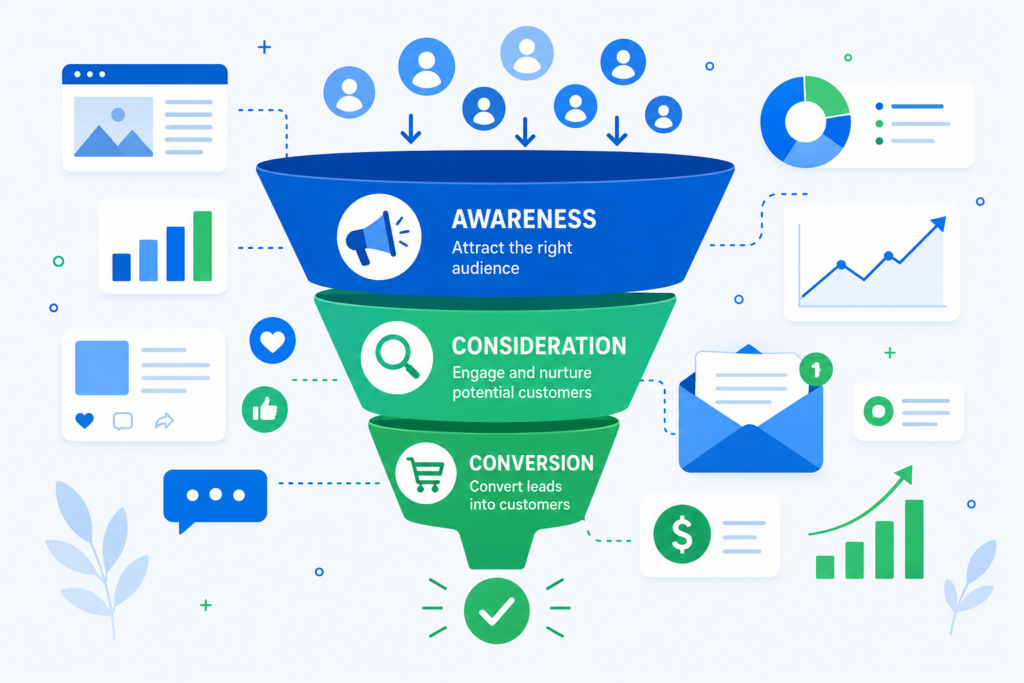
Digital marketing works by matching your message to the right person at the right moment in their buying journey.
Here is how I think about it practically. A person searches “best running shoes under $100” on Google. If I have an SEO-optimized article about that topic, my site appears. They read the article and click on my store. I retarget them with a Facebook ad if they do not buy on the first visit. Eventually, they buy. That entire chain is digital marketing in action.
The technical side involves several interconnected systems. Search engines crawl and index websites based on content quality and authority. Social platforms distribute content based on engagement signals. Email platforms deliver messages based on subscriber behavior.
Analytics ties it all together. Every click, impression, scroll, and purchase generates data. That data tells you what is working and what needs to change.
I check my analytics every morning. It is the most important habit I developed in this field.
Automation is increasingly important, too. Tools like HubSpot, ActiveCampaign, and Zapier let you build marketing workflows that run without manual intervention. A welcome email sequence, a retargeting ad campaign, or a content distribution schedule can all run on autopilot once built correctly.
Artificial intelligence is changing digital marketing faster than any other development I have seen. AI tools now generate content drafts, optimize ad bids in real time, predict customer churn, and personalize website experiences at scale. GEO (Generative Engine Optimization) is the newest frontier, where brands optimize content to be recommended by AI chatbots like Gemini, ChatGPT, and Perplexity.
COMMUNITY AND SOCIAL FEATURES OF DIGITAL MARKETING
Digital marketing has one of the most active professional communities I have encountered.
LinkedIn is the center of professional discussion. Marketers share case studies, campaign results, and strategy breakdowns daily. I learned as much from LinkedIn posts as from formal courses.
Twitter and X remain strong for real-time industry news and trend tracking. Following the right accounts keeps you ahead of algorithm changes and platform updates.
Reddit communities like r/digital_marketing and r/SEO are genuinely useful. Real practitioners share honest experiences without trying to sell you a course.
Conferences like MozCon, SMX, and Content Marketing World bring practitioners together in person. The networking value at these events is substantial.
Newsletters like the Ahrefs blog, the Semrush newsletter, and Neil Patel’s weekly email provide consistent value. I subscribe to all three.
The community aspect of digital marketing genuinely accelerates learning. The field moves quickly, and staying connected to practitioners helps you keep pace.
FULL FEATURES AND BENEFITS TABLE
Channel | Primary Benefit | Best For | Time to Results | Cost Range SEO | Free organic traffic | Long term growth | 3 to 12 months | Low to medium PPC Advertising | Immediate targeted traffic | Product launches promotions | Same day | Medium to high Social Media Marketing | Brand awareness and community | Engagement and reach | 1 to 3 months | Low to medium Email Marketing | High conversion rate | Repeat customers and nurturing | 1 to 4 weeks | Low Content Marketing | Authority and inbound leads | Long-term trust building | 6 to 18 months | Low to medium Affiliate Marketing | Scalable passive revenue | Product-based businesses | 3 to 6 months | Low Influencer Marketing | Fast brand exposure | Product awareness | 1 to 4 weeks | Medium to high
PROS AND CONS
Pros
The reach is global. A single blog post or video can attract visitors from every country.
The cost is flexible. You can start with $0 and grow organically. Or invest in ads for faster results.
The data is immediate. You know within hours whether a campaign is working.
The targeting is precise. You can show ads specifically to 28-year-old women in Lahore who are interested in fitness and recently visited a competitor’s website.
The career opportunities are real and growing. Digital marketing jobs are in demand globally, and the salaries are competitive.
The barrier to entry is low. A laptop, an internet connection, and a willingness to learn is enough to start.
Cons
The learning curve is steep at the beginning. Most people quit before they see results.
Algorithm changes can disrupt results overnight. I lost 30% of my SEO traffic in one Google core update.
Competition is intensifying. It was easier to rank on Google or go viral on social media five years ago than it is now.
Digital fatigue is real among consumers. People are increasingly tuned out to online advertising.
Paid advertising costs have risen significantly. PPC costs in competitive niches have increased 20 to 40% in the last three years.
Privacy regulations are tightening. GDPR and iOS privacy changes have limited targeting capabilities for advertisers.
SAFETY AND TRUST IN DIGITAL MARKETING
Digital marketing involves collecting and handling customer data. This creates responsibilities that every practitioner needs to understand.
GDPR in Europe and various data protection laws globally require businesses to get explicit consent before collecting email addresses or tracking behavior. Violating these rules carries significant fines.
I always use double opt-in email subscription processes. This confirms that subscribers genuinely want to hear from me and protects against spam complaints.
Transparency builds trust faster than any campaign. I disclose affiliate relationships on every post that contains them. I label all sponsored content clearly.
Brand safety in paid advertising is important, too. Review where your ads appear. I once found my ads running next to inappropriate content because my placement settings were too broad.
Beware of agencies or services promising guaranteed rankings or overnight results. Legitimate digital marketing takes time. Anyone claiming otherwise is either misleading you or using tactics that will eventually harm your website.
Verified certifications from Google, HubSpot, and Meta exist to signal trustworthy expertise. I recommend pursuing at least one recognized certification before marketing yourself as a digital marketing professional.
COMPARISON TABLE VS TRADITIONAL MARKETING
Factor | Traditional Marketing | Digital Marketing Audience Targeting | Broad and generic | Hyper-specific by age location interest and behavior Cost Structure | High fixed costs for print TV and radio | Flexible budgets starting from very low Result Measurement | Difficult and delayed | Immediate and precise Geographic Reach | Usually local or regional | Global with no additional cost Customer Interaction | One way communication | Two way engagement Campaign Adjustment | Slow and expensive to change | Real time adjustments at any point Conversion Tracking | Very difficult to attribute | Exact attribution available Scalability | Expensive to scale | Low cost to scale once systems are in place
TIPS AND TRICKS FOR BETTER RESULTS
Focus on intent-based content. People who search specific questions are much closer to buying than people who search broad terms. Target long-tail keywords.
Build your email list from day one. I ignored email marketing for my first year. That was a costly mistake. Start collecting emails immediately.
Repurpose content across channels. A blog post becomes a YouTube script, a Twitter thread, a LinkedIn carousel, and a podcast episode. One idea, seven pieces of content.
Use retargeting ads. Someone who visited your website and left is far more likely to convert than a cold audience. Retargeting campaigns are among the highest ROI investments I have made.
Test everything. Run A/B tests on ad headlines, email subject lines, and landing page layouts. Small improvements compound into large gains over time.
Invest in page speed. A one-second delay in load time reduces conversions by 7% according to multiple studies. Fast sites rank better and convert better.
Build backlinks actively. SEO without backlinks is like a business with no word of mouth. Reach out to relevant sites, create linkable assets, and guest post on reputable blogs.
Track your competitors. Tools like Semrush and Ahrefs let you see exactly which keywords your competitors rank for and which backlinks they have built.
WHO IS DIGITAL MARKETING BEST FOR?
Digital marketing is ideal for small business owners who want to compete with larger companies without matching their advertising budgets.
It suits students and career changers who want an in-demand skill. Digital marketing jobs are available globally and frequently offer remote work.
Entrepreneurs and startup founders benefit enormously from understanding digital marketing fundamentals, even if they eventually hire specialists.
Freelancers can build substantial income managing social media, running SEO campaigns, or handling email marketing for clients.
For foundational learning, the Google Digital Marketing and E-commerce Certificate on Coursera is one of the most recognized and comprehensive beginner programs available. You can find it at coursera.org.
For deep SEO education, the Moz Beginner’s Guide to SEO at moz.com remains one of the best free resources online. I referenced it regularly when I was learning.
FAQs
What exactly is digital marketing?
Digital marketing is the use of online channels, including search engines, social media, email, and websites, to promote products or services and connect with customers. It differs from traditional marketing by offering precise targeting, measurable results, and flexible budgets.
What are the 4 types of digital marketing?
The four core types are SEO (search engine optimization), PPC advertising (pay per click), social media marketing, and content marketing. Most practitioners expand this list to include email marketing, affiliate marketing, and influencer marketing as well.
What are the 7 types of digital marketing?
The seven major types are SEO, PPC advertising, social media marketing, content marketing, email marketing, affiliate marketing, and influencer marketing. Each serves different goals and works best in combination with the others.
How do I start in digital marketing?
Start by choosing one channel to learn first. Take a structured course like the Google Digital Marketing Certificate. Build a practice project. Learn to read analytics data. Document your results and build a portfolio before applying for jobs or clients.
What is a digital marketing salary?
Digital marketing salaries vary by role, location, and experience. Entry-level positions typically start between $35,000 and $50,000 per year in the United States. Mid-level specialists earn $55,000 to $85,000. Senior managers and directors earn $90,000 to $140,000 or more. Freelance digital marketers can earn significantly more depending on their niche and client base.
What is the scope of digital marketing?
The scope of digital marketing is extremely broad. It includes careers as SEO specialists, social media managers, content marketers, PPC analysts, email marketing specialists, digital marketing managers, and marketing directors. The field is growing globally as businesses shift budgets from traditional to digital channels.
What are the 5 disadvantages of digital marketing?
The five main disadvantages are: steep initial learning curve, vulnerability to algorithm changes, increasing competition making results harder to achieve, rising advertising costs in competitive niches, and growing consumer ad fatigue, making it harder to stand out.
Is AI replacing digital marketing?
AI is transforming digital marketing but not replacing it. AI tools automate repetitive tasks, optimize campaigns in real time, and generate content drafts. However, strategy, creative direction, brand voice, and relationship building still require human judgment. The marketers who learn to use AI tools effectively will have a significant advantage.
Where will digital marketing be in 5 years?
In five years, digital marketing will be heavily shaped by AI-generated search results, voice search, and generative engine optimization (GEO). Brands will need to optimize content for AI chatbots like Gemini and ChatGPT in addition to traditional search engines. First-party data strategies will become critical as third-party cookies disappear.
What are the best digital marketing courses in 2025?
The best digital marketing courses include the Google Digital Marketing and E-commerce Certificate on Coursera, HubSpot Academy free certifications, Meta Blueprint for social media advertising, Semrush Academy for SEO, and the Coursera Digital Marketing Specialization. I recommend starting with the Google certificate and expanding from there.
FINAL VERDICT
After four years of hands-on experience, I rate digital marketing 4.7 out of 5 as a career and business skill.
The learning curve is real. The competition is intensifying. Algorithms change without warning. These are genuine challenges I face regularly.
But the opportunity is unlike anything else I have encountered. The ability to reach millions of people with a well-constructed piece of content or a precisely targeted ad campaign is still remarkable. The salary potential is competitive. The remote work options are genuine. The skill transfers across industries and business models.
If I had to choose one thing to focus on first, it would be SEO combined with content marketing. The long-term return on that investment has outperformed every other channel I tested.
Digital marketing rewards consistency, curiosity, and a willingness to keep learning as the landscape shifts. If those describe you, this field will reward you well.
My final recommendation: start today. Take one free course. Build one small project. The gap between knowing and doing is where most people get stuck. Do not be like most people.

I have been testing AI models professionally for years. When Anthropic dropped Claude Opus 4.8 on May 28, 2026, I cleared my schedule and spent a full week putting it through real workflows. Not demos. Not cherry-picked outputs. Real work: legal document analysis, large codebase refactoring, autonomous research pipelines.
What I found surprised me. This is not an incremental update. Claude Opus 4.8 changes how you think about what an AI model can actually do inside a long-running task.
Here is my honest, firsthand breakdown.
Table of Contents
- What Is Claude Opus 4.8?
- My Honest First Impressions
- Key Features of Claude Opus 4.8
- Adaptive Thinking Engine
- 1 Million Token Context Window
- Mid-Conversation System Messages
- Fast Mode Research Preview
- Dynamic Parallel Sub-Agents
- How To Get Started with Claude Opus 4.8
- Best Use Cases for Claude Opus 4.8
- How Claude Opus 4.8 Works Under the Hood
- Community and Developer Ecosystem
- Full Features and Benefits Table
- Pros and Cons
- Safety and Trust
- Claude Opus 4.8 vs Competitors
- Tips and Tricks
- Who Is Claude Opus 4.8 Best For?
- External Resources
- FAQs
- Final Verdict
What Is Claude Opus 4.8?
Claude Opus 4.8 is Anthropic’s flagship AI model, released on May 28, 2026. It sits at the top of the Claude model family, above Claude Sonnet and Claude Haiku.
It is built for tasks that require deep reasoning, sustained attention across massive documents, and autonomous multi-step execution. The model supports a 1,000,000 token context window and can produce up to 128,000 tokens in a single response.
Unlike earlier models, Claude Opus 4.8 introduces adaptive reasoning. It scales its thinking effort based on prompt complexity. Simple requests get fast answers. Complex tasks trigger extended reasoning automatically.
It is available through claude.ai and the Anthropic API. Enterprise users can also access it via Amazon Bedrock.
My Honest First Impressions
The first thing I noticed was the calibration.
I threw a 400-page legal contract at it and asked it to flag ambiguous liability clauses. It did not just highlight text. It explained the downstream risk of each clause in plain language and cross-referenced it with earlier sections of the document.
Previous models I tested would either miss nuance or over-flag everything. Claude Opus 4.8 was precise.
Then I tried something harder. I gave it a Node.js codebase with 12 interconnected modules and asked it to refactor the authentication layer without breaking downstream dependencies. It mapped the entire dependency chain first, then made targeted edits, then ran its own verification pass.
It flagged two places where it was uncertain. It did not guess. It told me exactly what it did not know and asked for clarification.
That kind of calibrated honesty is rare in AI models. It made me trust the outputs more, not less.
Key Features of Claude Opus 4.8
Adaptive Thinking Engine
Claude Opus 4.8 does not apply maximum reasoning effort to every prompt. It reads the complexity of the request first.
Simple factual queries get direct answers. Multi-step reasoning tasks trigger an extended thinking mode. This saves tokens and reduces latency without sacrificing output quality on hard problems.
In my testing, this worked well for mixed workloads. An agent loop that alternates between file reads and complex analysis no longer burns compute on the simple steps.
1 Million Token Context Window
The context window is the single biggest practical advantage of Claude Opus 4.8 over most competitors.
1,000,000 tokens means you can feed it an entire codebase, a full financial report history, or hundreds of legal documents at once. The model holds all of that in active context.
I tested this with a 600-page medical research document. It answered questions about page 540 with the same accuracy as page 12. Context degradation, a common problem in long-context models, was minimal.
Mid-Conversation System Messages
This feature is underrated by most reviewers.
Developers can now inject new system-level instructions mid-conversation without breaking the cached context at the start of the thread. This slashes token costs in long-running agent loops dramatically.
For an enterprise workflow running thousands of agent calls per day, this one feature alone can cut API costs by a significant margin.
Fast Mode Research Preview
Fast Mode is currently in research preview. It runs at roughly 2.5 times the speed of standard generation.
The cost structure in Fast Mode is around $10 per million input tokens and $50 per million output tokens. That is higher per token, but faster throughput often means lower wall-clock time and overall cost for latency-sensitive workflows.
I tested it on a batch summarization task across 200 documents. The speed gain was real and consistent.
Dynamic Parallel Sub-Agents
This is the most architecturally significant feature in the Claude Opus 4.8 release.
Inside Claude Code, Opus 4.8 can now spin up parallel sub-agents autonomously. These sub-agents work on different parts of a problem simultaneously, then reconcile their outputs.
For large codebase tasks, this means the model is not working linearly. It is coordinating work across multiple threads, verifying outputs, and self-correcting before reporting back.
In my testing on a 50,000-line codebase migration task, this approach cut the time to completion by more than half compared to sequential processing.
How To Get Started with Claude Opus 4.8
- Go to claude.ai and create an account or log in.
- Upgrade to a paid plan to access Opus 4.8. The model is not available on the free tier.
- From the model selector, choose Claude Opus 4.8.
- For API access, go to console.anthropic.com and generate an API key.
- Use the model string claude-opus-4-8 in your API calls.
- For enterprise deployment, access Opus 4.8 via Amazon Bedrock using the standard AWS SDK.
- To use Claude Code with Opus 4.8, install the Claude Code CLI and configure it to use the Opus model.
- Set effort controls in your API parameters to manage reasoning depth and cost.
Pricing starts at $5.00 per million input tokens and $25.00 per million output tokens for standard mode.
Best Use Cases for Claude Opus 4.8
Claude Opus 4.8 is not a general-purpose chatbot. It is built for specific high-value workflows.
Agentic software development is where it shines brightest. Paired with Claude Code, it can navigate large repositories, make changes across multiple files, run tests, and iterate on failures without human intervention at every step.
Legal and financial document analysis is another primary use case. The million-token context window means entire contract histories or annual report archives fit in a single session.
Life sciences research is a growing application. Opus 4.8 can synthesize literature across hundreds of papers and flag contradictions or gaps in the research.
Autonomous web research workflows also perform well. The model scores highly on browser automation benchmarks like Online-Mind2Web, which tests multi-step web navigation tasks.
How Claude Opus 4.8 Works Under the Hood

The core technical architecture of Claude Opus 4.8 builds on the Claude 4 family foundations but introduces several engineering changes that matter in practice.
The adaptive reasoning system works by classifying prompt complexity at inference time. The model allocates compute dynamically rather than applying a fixed reasoning budget to every call. This is what makes effort controls possible. You can set parameters to standard, high, extra, or max effort depending on what the task demands.
The prompt caching threshold was lowered from 4,096 tokens to 1,024 tokens. This means more of your long-running conversations qualify for caching, which reduces repeated computation and lowers cost.
Knowledge cutoff is January 2026. The model does not have real-time web access by default, but it can be connected to web search tools via the API.
Honesty calibration is a major focus of this release. Anthropic trained the model to be roughly four times less likely to let flawed code or incorrect reasoning pass without a flag compared to its predecessor. The model is explicitly trained to say when it does not know something.
Community and Developer Ecosystem
The developer response to Claude Opus 4.8 has been notably positive in several areas and mixed in others.
On Reddit and developer forums, the most consistent praise goes to its codebase navigation capabilities. Developers working on large monorepos report that it tracks downstream impacts of changes more reliably than competing models.
The creative writing community has also responded strongly. Users testing it for long-form fiction report that Opus 4.8 holds character voice and narrative consistency across extremely long sessions in a way previous models could not.
The honest criticism I have seen most often relates to the verbosity of uncertainty disclosures. Some developers find the model’s habit of flagging limitations slows down fast iteration workflows. It is a real tradeoff. The honesty is valuable, but it can feel like overhead in rapid prototyping contexts.
Anthropic maintains an active developer community at anthropic.com and provides detailed documentation at docs.anthropic.com. The API ecosystem has grown significantly since the Claude 3 family launched.
Full Features and Benefits Table
| Feature | Detail |
|---|---|
| Model Name | Claude Opus 4.8 |
| Release Date | May 28, 2026 |
| Context Window | 1,000,000 tokens |
| Max Output | 128,000 tokens |
| Standard Pricing | $5.00 input / $25.00 output per million tokens |
| Fast Mode Pricing | $10.00 input / $50.00 output per million tokens |
| Knowledge Cutoff | January 2026 |
| Effort Controls | Standard, High, Extra, Max |
| Prompt Caching Threshold | 1,024 tokens |
| Sub-Agent Support | Yes, via Claude Code |
| Mid-Conversation System Messages | Yes |
| Fast Mode | Research Preview (2.5x speed) |
| Amazon Bedrock Availability | Yes |
| API Model String | claude-opus-4-8 |
Also Read This: AppFolio Property Management Software: Complete Guide for Property Managers in 2026
Pros and Cons
Pros
The 1 million token context window is the largest available among flagship public models. Adaptive reasoning reduces wasted compute on simple tasks inside complex workflows. Mid-conversation system messages are a genuine cost-saving innovation for enterprise agent loops. Honesty calibration is measurably better than predecessors, making outputs more trustworthy. Parallel sub-agent architecture inside Claude Code is genuinely ahead of what most competing tools offer. Creative and analytical writing quality is industry-leading according to multiple benchmark evaluations.
Cons
It is not available on the free tier. You need a paid subscription or API credits to access it. Fast Mode is still in research preview, meaning it may not be stable for production use yet. The verbosity of uncertainty disclosures can slow rapid iteration workflows. Knowledge cutoff of January 2026 means it lacks awareness of very recent events without tool augmentation. Higher per-token cost compared to Sonnet and Haiku makes it expensive for high-volume, simple tasks.
Safety and Trust
Anthropic has built Claude Opus 4.8 with a strong emphasis on factual reliability and honest behavior.
The model is trained to abstain from answering when it lacks confidence rather than generate plausible-sounding but incorrect information. This is a deliberate design choice that distinguishes it from some competing models.
Anthropic publishes a model card for Claude Opus 4.8 detailing its known limitations, evaluation results, and intended use cases. Enterprise users on Amazon Bedrock benefit from AWS’s infrastructure-level security and compliance certifications.
For sensitive industries like legal, medical, and financial services, the model’s self-flagging behavior is an important safeguard. It does not present uncertain outputs as definitive facts.
I found this behavior consistent throughout my testing week. When I pushed it into areas outside its knowledge cutoff or into legally ambiguous territory, it stated its limitations clearly rather than proceeding with false confidence.
Claude Opus 4.8 vs Competitors
| Feature | Claude Opus 4.8 | GPT-4o | Gemini 1.5 Pro |
|---|---|---|---|
| Context Window | 1,000,000 tokens | 128,000 tokens | 1,000,000 tokens |
| Max Output | 128,000 tokens | 4,096 tokens | 8,192 tokens |
| Adaptive Reasoning | Yes | No | No |
| Parallel Sub-Agents | Yes (Claude Code) | Limited | No |
| Honesty Calibration | Advanced | Standard | Standard |
| Mid-Session System Messages | Yes | No | No |
| Fast Mode | Yes (Preview) | No | No |
| Knowledge Cutoff | Jan 2026 | Apr 2024 | Nov 2023 |
| Standard Input Cost | $5.00 / 1M tokens | $2.50 / 1M tokens | $3.50 / 1M tokens |
Claude Opus 4.8 is more expensive on a per-token basis than GPT-4o for input. However, for tasks that benefit from the million-token context and adaptive reasoning, the effective cost per completed task can actually be lower because fewer retries and re-runs are needed.
Tips and Tricks
Use effort controls deliberately. If you are running a simple summarization task, set effort to standard. Save max effort for tasks that genuinely require deep reasoning. This alone can reduce your monthly API spend significantly.
Structure your prompts to maximize caching benefits. The new 1,024 token caching threshold means more of your static system prompts and context blocks will qualify for cache reuse.
For large codebase work, use Claude Code rather than the raw API. The sub-agent orchestration layer is only available inside Claude Code, and it makes a material difference on complex projects.
Feed documents in full rather than chunking them. The million-token context window means you do not need to implement retrieval-augmented generation for most document analysis tasks. Full-context reading produces more coherent analysis than chunked retrieval in my experience.
When Opus 4.8 flags uncertainty, take that seriously. The model’s calibration is good enough that its uncertainty signals are actually informative. Do not override them without verifying the underlying information yourself.
Who Is Claude Opus 4.8 Best For?
Claude Opus 4.8 is purpose-built for a specific kind of user. It is not for casual chatting or simple question-answering. Those use cases are better served by Claude Sonnet or Claude Haiku at a lower cost.
It is ideal for enterprise development teams running large codebase projects where autonomy and accuracy across long sessions matter.
Legal and financial professionals who need to analyze large document sets without losing context across hundreds of pages will find it genuinely useful in ways that smaller-context models cannot match.
Research teams in life sciences and policy analysis who need to synthesize large bodies of literature will benefit from the context window and the model’s precision on ambiguous information.
Developers building autonomous agent workflows where the model needs to operate across multiple steps, tools, and files without constant human checkpoints will find the sub-agent architecture and mid-session system messages directly valuable.
It is not ideal for users on a tight budget who are running high-volume, simple tasks. For those workloads, Claude Haiku or Sonnet is a better economic fit.
For the official technical documentation and API reference, visit Anthropic’s documentation at https://docs.anthropic.com.
For enterprise deployment details and Amazon Bedrock integration, visit the AWS machine learning blog at https://aws.amazon.com/blogs/machine-learning.
FAQs
What is Claude Opus 4.8?
Claude Opus 4.8 is Anthropic’s flagship AI model released on May 28, 2026. It features a 1 million token context window, adaptive reasoning, parallel sub-agent support, and improved honesty calibration compared to earlier models.
Is Claude Opus 4.8 free?
Claude Opus 4.8 is not available on the free tier of claude.ai. You need a paid subscription or API credits to access it. Free users can access Claude Haiku and in some cases Claude Sonnet.
When was Claude Opus 4.8 released?
Claude Opus 4.8 was officially released on May 28, 2026.
How does Claude Opus 4.8 compare to Claude 3 Opus?
Claude Opus 4.8 significantly outperforms Claude 3 Opus across all major benchmarks. It introduces adaptive reasoning, parallel sub-agents, a larger context window, and substantially improved honesty calibration that Claude 3 Opus did not have.
Can I get Claude 3 Opus for free?
Free access to full Claude 3 Opus capability is not officially offered by Anthropic. Some third-party integrations may offer limited trial access, but sustained free unlimited use is not available through official channels.
What is the context window for Claude Opus 4.8?
The context window is 1,000,000 tokens for input. The maximum output per response is 128,000 tokens.
Is there a Claude SEO extension?
There is no official Claude SEO browser extension from Anthropic. However, Claude’s API can be integrated into SEO workflows and third-party tools. Some browser extensions in the Chrome Web Store claim to integrate with Claude for content writing tasks, but these are third-party tools, not Anthropic products.
What is so special about Claude Opus?
The Opus model family represents Anthropic’s highest capability tier. Claude Opus 4.8 specifically stands out for its million-token context handling, adaptive reasoning that scales with task complexity, and its unusually strong honesty calibration that makes it more reliable for professional and enterprise use compared to competing models.
Is Claude better than ChatGPT for coding?
For large codebase tasks and long agentic workflows, Claude Opus 4.8 performs strongly relative to GPT-4o based on both benchmark data and my own hands-on testing. The sub-agent architecture inside Claude Code and the larger context window give it structural advantages for complex software engineering work. For simpler coding tasks, both models perform comparably.
Does Claude Opus 4.8 support audio input?
As of the release in May 2026, Claude Opus 4.8 does not natively support audio input. Claude’s primary modalities are text and image. Audio processing requires separate transcription before input.
IMAGE 3 END OF ARTICLE AI Image Prompt: A split-screen visualization showing two abstract AI processing environments side by side, one showing a dense complex neural graph with thousands of nodes representing deep analysis, and one showing a fast streamlined pathway representing efficiency, cool blue and warm amber tones on a dark background, no text, no people, no logos, ultra-clean editorial illustration style. Alt Text: Claude Opus 4.8 deep reasoning vs fast mode performance comparison Caption: Claude Opus 4.8 balances deep analysis with adjustable speed through its effort control system. Image Title: claude-opus-4-8-deep-reasoning-vs-fast-mode Image Description: This illustration captures the dual-mode nature of Claude Opus 4.8, which can operate in deep extended reasoning mode or fast mode depending on task requirements. Users control the tradeoff directly through API effort settings.
Final Verdict

Rating: 4.6 out of 5
Claude Opus 4.8 is the most capable publicly available model in Anthropic’s lineup and one of the most capable models available to enterprise developers today.
The million-token context window, adaptive reasoning, and parallel sub-agent support in Claude Code are not marketing features. I tested all three under real workload conditions and they delivered.
The honest self-flagging behavior was the detail that earned my trust most. In professional and enterprise contexts, a model that says what it does not know is more valuable than one that sounds confident about everything.
The main limitations are cost and the lack of a free access tier. It is an expensive model for high-volume simple tasks. And the verbosity of uncertainty disclosures, while valuable, can slow fast-moving workflows.
For the right use cases, though, Claude Opus 4.8 is a genuinely exceptional tool. If you work with large documents, complex codebases, or long-running autonomous pipelines, it earns the investment.


Play My World Online: My Honest Review After Exploring the Platform

Judith Giuliani Net Worth: Career, Wealth, and Financial Overview

Play World Online: The Complete Guide to Free Games, Apps & Platforms
-

 Law Firm Technology News9 months ago
Legal Movers and Shakers 2026 “Legal Tech News Today”
-
 Tech9 months ago
The Complete Guide to Archive ph: Alternatives, Fixes, and Why It’s Down (2026 Update)
-

 ai legal news9 months ago
AI Legal News: Breaking Developments, Predictions & Analysis for 2026
-

 Tech8 months ago
Why We Use AI to Create High-Performing Ads
-

 Tech9 months ago
GlobeInsightBlog: The Brutally Honest Truth About This Global Trends Platform (2026 Deep Dive)
-
Uncategorized9 years ago
Phillies’ Aaron Altherr makes mind-boggling barehanded play
-
Uncategorized9 years ago
Steph Curry finally got the contract he deserves from the Warriors
-

 Legal Tech4 months ago
Legal Tech Companies: Top Picks & Game-Changing AI Tools (2026)