Law Firm Software
BillForTime Login: Simple Step-by-Step Guide for Easy Access
BillForTime login helps users access their accounts to view invoices, manage billing, and make online payments easily. Many law firms and professionals use BillForTime to save time and get paid faster.
If you are looking for a simple way to sign in, you are in the right place. This easy guide will show you how to use the BillForTime login step by step, even if you are a beginner.
You will also learn how to check your account balance, pay invoices online, and fix common login problems in just a few minutes.
Secure Payments Built for Law Firms
BillForTime uses trusted payment technology from Headnote, a system made especially for lawyers and law firms. This technology follows strict rules for trust accounting and keeps client payment data safe.
The company behind BillForTime, Paradigm, added Headnote to its products to make payments easier and more secure. Other legal tools from Paradigm, like PracticePanther and MerusCase, also use this same trusted payment system.
Before this upgrade, users could accept online payments using outside services. Now, after using the BillForTime login, everything is built into one place. Users can see payments, invoices, and reports at a glance without switching between different platforms.
This all-in-one setup saves time, feels easier to use, and gives users one support team to contact if they need help. BillForTime also follows PCI security standards and trust accounting rules in all 50 states, so users can feel confident their payments are handled safely.
My Experience Using BillForTime Payments
When I first used the BillForTime login, I wanted to see if managing payments would really be simple. The setup surprised me in a good way. Activating the payment feature took only a few minutes and required just a few easy steps.
After logging in, all payment details appeared on one clear dashboard. I could quickly see payments from both operating and trust accounts without switching pages or tools.
What I liked most was how easy it was to focus on exactly what I needed. I could view payments for one client, only trust payments, or all transactions at once. Everything was organized and easy to understand, even for someone using it for the first time.
From my experience, having all payments in one place saves time and reduces confusion. It made billing and payment tracking feel much less stressful.
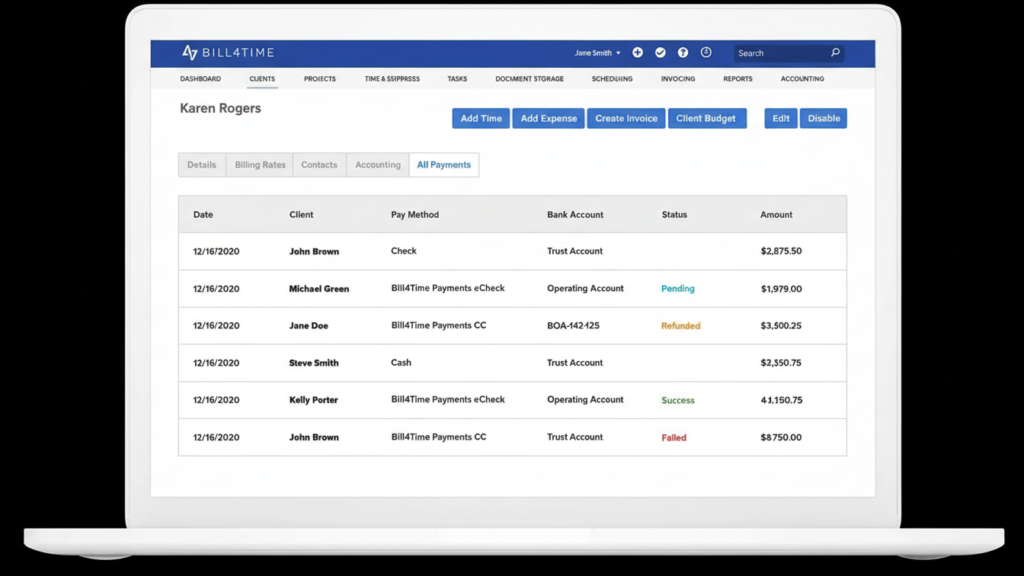
After signing in through the BillForTime login, firms can see all payment details on one simple page. This includes who made the payment, how it was paid, the payment status, and which bank account received the money. Any processing fees are also clearly shown.
Before this feature, firms using outside payment services had to leave BillForTime just to issue a refund. Now, refunds are much easier. Users can send full or partial refunds directly from the dashboard without visiting another website.
All refunds are clearly marked, so firms can quickly spot them and stay organized. This makes tracking payments easier and helps avoid mistakes.
Because everything is in one place, firms can create quick reports and understand their payments at a glance. This saves time, reduces confusion, and makes managing billing much simpler.
Making Payments
When I use the BillForTime login, sending and receiving payments feels simple and smooth. I can add an online payment option to any invoice and send it by email in just a few clicks. I can also invite clients to the secure client portal so they can view their invoice and pay online.

Once a client is invited, they receive an email with a link to the portal. From there, they can see their invoice clearly and click the “Pay Now” button to make a payment right away. I’ve noticed this helps clients pay faster because everything is easy to understand.
Clients can choose how they want to pay. They can use a credit card, or they can pay by e-check. For e-checks, they have two options. One option is to enter their bank routing and account numbers. The second option lets them pay using a secure bank login, which feels safer and helps avoid mistakes.

Inside the portal, clients can also save their payment details for next time. They can choose to send payment receipts to more than one email address, like a bookkeeper or office manager. From my experience, this makes payment tracking easier for everyone involved.
Pricing and Cash-Back Offer (My Experience)
When I used the BillForTime login to explore payments, one thing I liked right away was the pricing. There is no extra subscription fee or membership cost to use the payments feature. If you already use BillForTime, payments are simply available to you.
For each e-check payment, there is a flat $5 fee. For credit card payments, the fee is 2.8%, no matter what type of card is used. I found this helpful because the pricing is easy to understand and there are no hidden charges.
With many payment processors, fees can be confusing. Some charge extra costs or different rates based on card type. From my experience, BillForTime keeps things simple by using one clear rate, which makes billing easier to track.
I also noticed that BillForTime offers a $150 cash-back bonus when firms sign up for payments. Once a firm reaches $150 in transaction fees, that bonus is added directly to the operating account. This felt like a nice extra benefit for getting started.
Overall, the pricing feels fair, transparent, and easy to explain. For law firms that want simple payment processing without surprise fees, this setup makes managing payments much less stressful.
Related:
- On LawNext: ASG LegalTech’s Acquisition Of Headnote: The Two CEOs Discuss.
- Exclusive: ASG LegalTech Acquires Payments Platform Headnote; We Interview the Two Companies’ CEOs.
- ASG LegalTech, Parent to Four Legal Practice Products, Rebrands As Paradigm – Exclusive Interview with Company Execs.
- LawNext Episode 17: Headnote Founder Sarah Schaaf on Simplifying How Lawyers Get Paid.
Also read THIS: Law Firm Software Best Law Firm Software for Small Firms in 2026 – A Complete Buyer’s Guide
FAQs
1. What is the BillForTime login used for?
BillForTime login is used to access your account, where you can view invoices, track payments, manage clients, and handle billing tasks in one secure place.
2. How do I log in to BillForTime?
To use the BillForTime login, go to the official website, enter your email and password, and click the login button. Once logged in, you can access your dashboard instantly.
3. What can I do after logging in to BillForTime?
After signing in through the BillForTime login, you can:
- View invoices and payment history
- Accept online payments
- Manage trust and operating accounts
- Send invoices to clients
- Download payment reports
4. Is the BillForTime login safe to use?
Yes, the BillForTime login is secure. It follows PCI data security standards and uses trusted payment technology to protect user and client information.
5. Can clients make payments without a BillForTime account?
Yes. Clients do not need their own account. After you send an invoice, clients can click the payment link, view the invoice, and pay securely through the client portal.
6. What payment methods are available after login?
After using the BillForTime login, firms and clients can use:
- Credit cards
- e-check via bank login
- e-check using account and routing numbers
7. Can I issue refunds inside BillForTime?
Yes. After logging in, you can issue full or partial refunds directly from the payment dashboard without using a third-party website.
8. What should I do if the BillForTime login is not working?
If your BillForTime login is not working:
- Check your email and password
- Reset your password if needed
- Clear browser cache
- Try another browser or device
If the issue continues, contact BillForTime support.
9. Is there an extra cost to use BillForTime payments?
No. There is no extra subscription fee. You only pay simple processing fees for credit cards or e-checks after using the BillForTime login.
10. Can I access BillForTime on mobile devices?
Yes. You can use BillForTime login on desktop, tablet, or mobile browsers to manage billing and payments anytime.